
ESP tab
What gets drawn on players. The ESP Preview next to the options shows your choices on a sample player as you change them.
The tab has two parts, ESP and ESP Colors. On a small menu the preview gets its own Preview button.
ESP
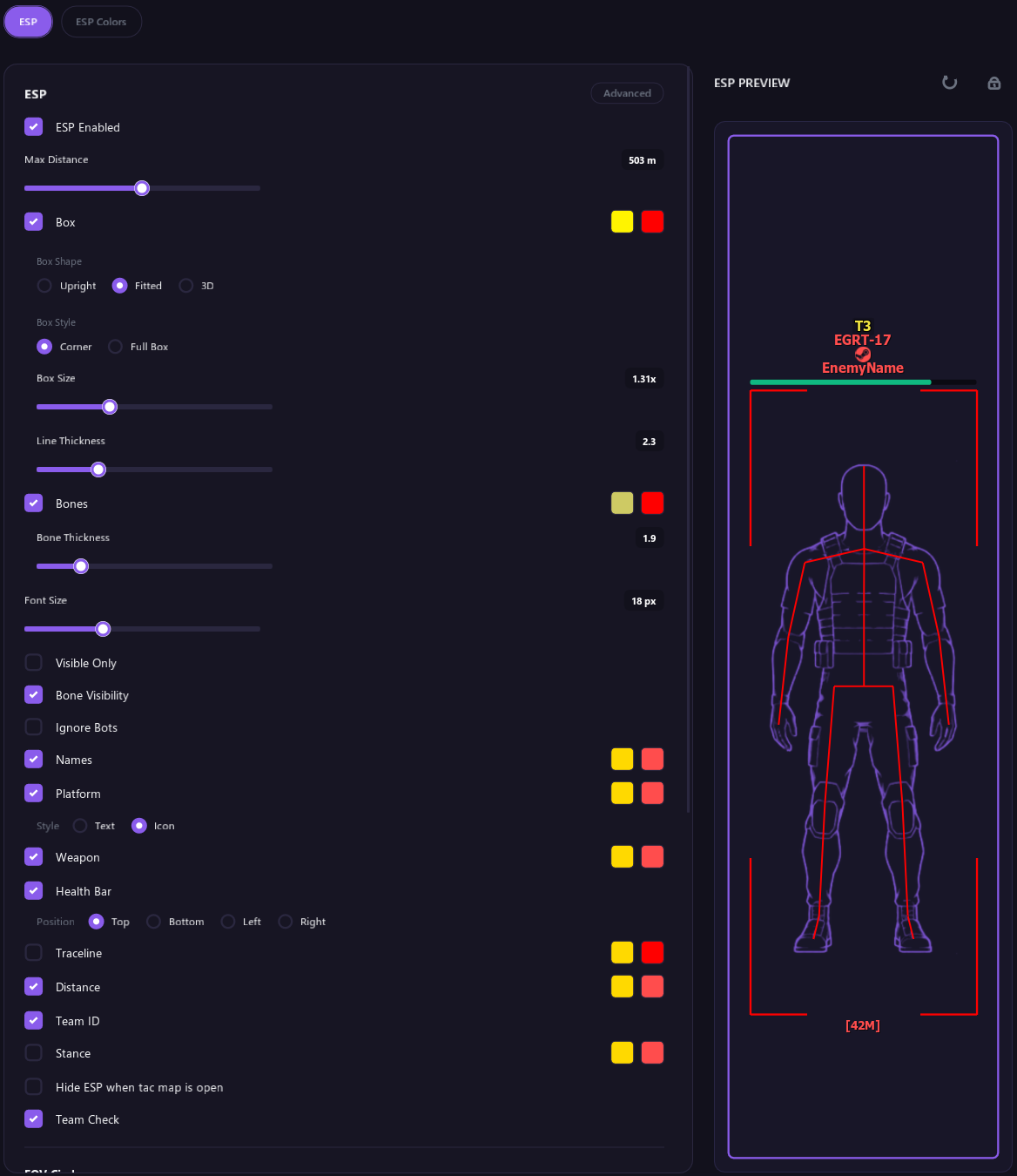
Some options only show when you turn on Advanced in the corner of the ESP section. They are marked (Advanced) below.
| Option | What it does |
|---|---|
| ESP Enabled | Turns all player ESP on or off. |
| Max Distance | Hides players farther away than this, in meters. |
| Box | Draws a box around each player. See Box below. |
| Bones | Draws each player's skeleton. Bone Thickness sets how thick the lines are. |
| Font Size | Text size for ESP labels. |
| Visible Only | Only shows players you can see, not ones behind walls or cover. |
| Bone Visibility | Checks which of a player's bones are behind walls, so the aimbot only aims at bones you can see. Black Ops 7 and Warzone only. |
| Ignore Bots | Hides AI, zombies and anything that is not a real player. With it off, Bot Distance sets how far away bots are shown, from 25 to 250 m. Modern Warfare IV, Black Ops 7 and Warzone. |
| Names | Shows each player's name. |
| Platform | Shows each player's platform, such as Steam, Battle.net, Xbox or PlayStation. Style is Text or Icon. Platforms without an icon show as text. Black Ops 7 and Warzone only. |
| Weapon | Shows the weapon each player is holding. |
| Health Bar | Shows a health bar next to each player. Position picks which side of the box it sits on. |
| Traceline | Draws a line from the bottom of your screen to each player. |
| Distance | Shows how far away each player is, in meters. |
| Team ID | Shows each player's team number, like T3. |
| Stance | Shows if a player is standing, crouched, prone or downed. |
| Hide ESP when tac map is open | Hides player ESP while you have the tac map open. The radar, tac map dots and off-screen arrows still show. |
| Team Check | Hides your teammates. |
| FFA Mode (Advanced) | Treats every player as an enemy. See Free-for-all below. |
Box
With Box ticked, these options show under it:
- Box Shape: Upright is a flat box that stays standing. Fitted wraps the player's body in any pose, even lying down. 3D is a box in the game world that turns with the way the player faces.
- Box Style: Corner or Full Box.
- Box Size: raise it if the box sits inside the player instead of around them.
- Line Thickness: how thick the box and traceline are. With Box off, it shows under Traceline instead.
Moving labels
Names, Platform, Weapon, Distance, Team ID and Stance each get a Position row when Advanced is on: Top, Bottom, Left or Right of the player's box. The Health Bar always has its Position row.
You can also drag the labels in the ESP Preview:
- Click the lock button at the top right of the preview to unlock it.
- Drag any label to where you want it around the box.
- Click the lock again to keep the layout.
The arrow button next to the lock puts every label back in its default spot.
Free-for-all
In Black Ops 7, the tool spots free-for-all matches on its own and treats every player as an enemy. You don't need to change anything.
FFA Mode is a manual switch for when that doesn't happen:
- Enemies show as teammates in a mode without teams.
- You play another game, where free-for-all isn't spotted on its own.
To turn it on, turn on Advanced in the corner of the ESP section, then tick FFA Mode under Team Check. While it is on it stays in the list, even with Advanced off. Turn it off again for modes with teams, or Team Check and Ignore Team stop working.
Tags in front of names
Players you mark in the Lobby tab get a tag in front of their name:
- * means Target.
- ! means Cheater.
- [F] means Friend.
Players on a Top 250 leaderboard get a TOP 250 # tag with their rank. See Top 250.
FOV Circle
| Option | What it does |
|---|---|
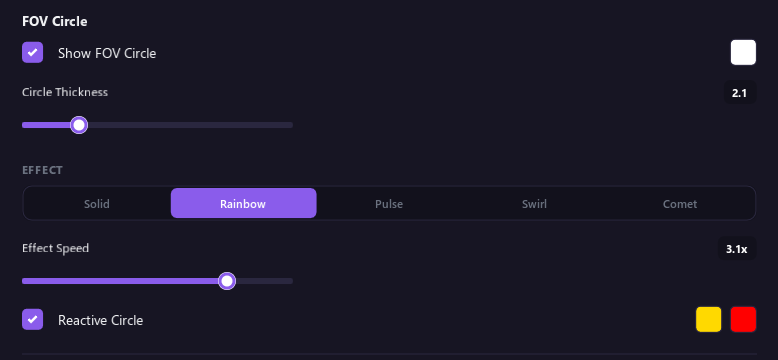
| Show FOV Circle | Shows the area the aimbot and triggerbot search for targets. Its size is the FOV setting on the Aim tab. |
| Circle Thickness | How thick the circle is. |
| Effect | How the circle animates: Solid, Rainbow, Pulse, Swirl or Comet. Effect Speed sets how fast. |
| Reactive Circle | Colors the circle by what the aimbot is doing and makes it thicker while aiming. |
On-Screen Info

| Option | What it does |
|---|---|
| Team Count | Shows how many teammates and enemies are still alive, in the corner you pick with Team Count Corner. |
| Show FPS Counter | Shows two counters in the top right corner. OVERLAY is how fast the overlay draws. DMA is how often the player data refreshes. Neither one is your game's FPS. |
| Show Debug Info | Shows a status panel in the top left corner. Screenshot it when you report a problem. See Troubleshooting. |
| Panel Background | How solid the status panel's background is. |
ESP Colors
Visibility Coloring
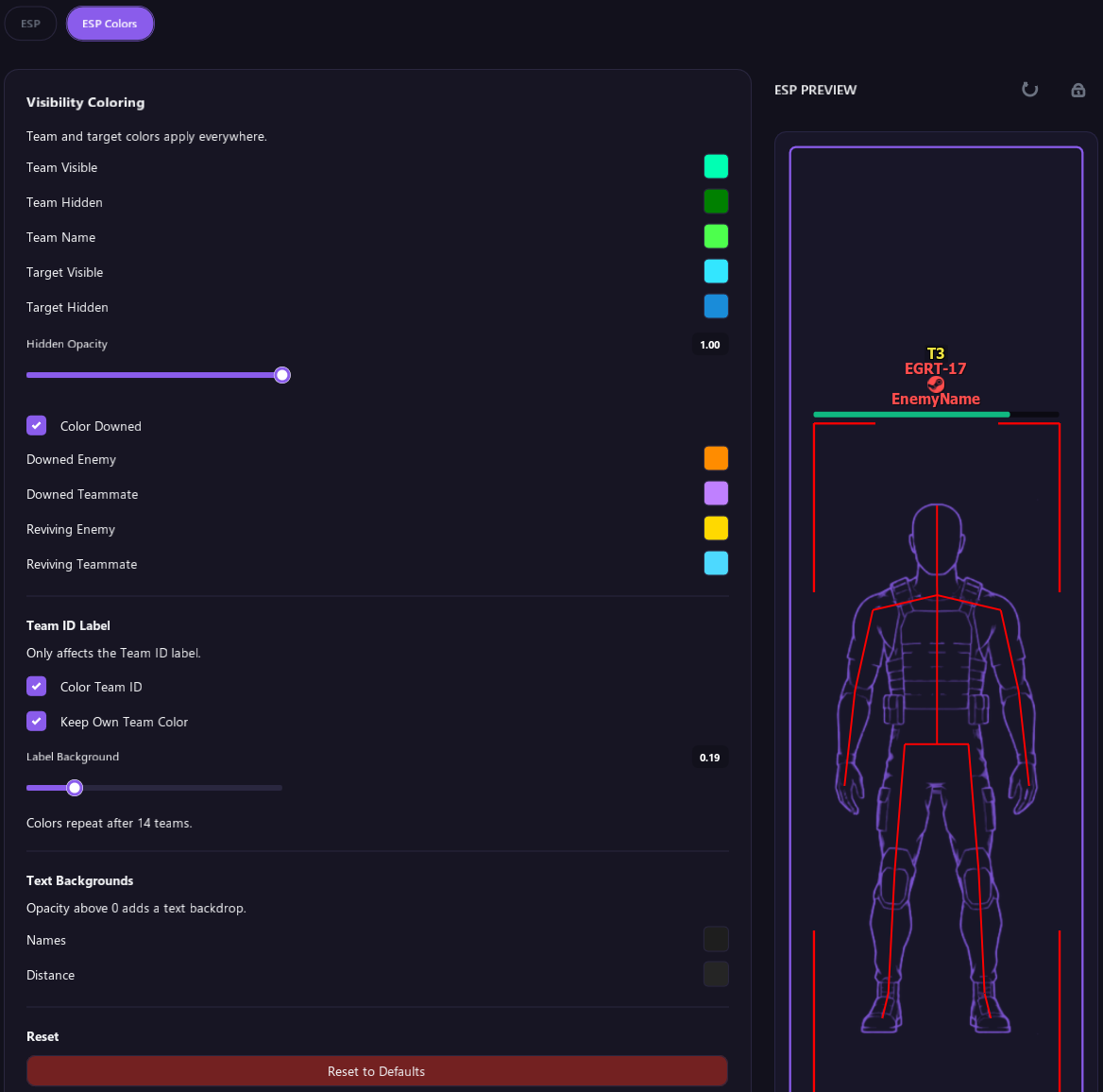
- Team Visible, Team Hidden and Team Name: colors for your teammates.
- Target Visible and Target Hidden: colors for players you marked as Target, so they stand out.
- Hidden Opacity: makes hidden players more see-through.
- Color Downed: gives downed players, and players reviving a teammate, their own colors. It has four: Downed Enemy, Downed Teammate, Reviving Enemy and Reviving Teammate.
Team ID Label
- Color Team ID gives each team number its own color. Colors repeat after 14 teams.
- Keep Own Team Color leaves your own team's color as it is.
- Label Background sets how solid the box behind the team number is.
Text Backgrounds
Raise the opacity of the Names or Distance color to put a backing behind that text. It makes the text easier to read.
Reset
Reset to Defaults at the bottom of each part puts the whole ESP tab back to its defaults. Click it twice to confirm.
Tips
- If boxes are too small, raise Box Size.
- If the screen is cluttered, lower Max Distance or turn on Visible Only.
- Players only show up during a match.