
Settings tab
Menu size and language, the overlay, your connection and panic key, your DMA card, controller shortcuts and your profiles.
Everything is in one part called General, split into Menu, Overlay, Connection, DMA Card, Controller Shortcuts and Profile.
Menu
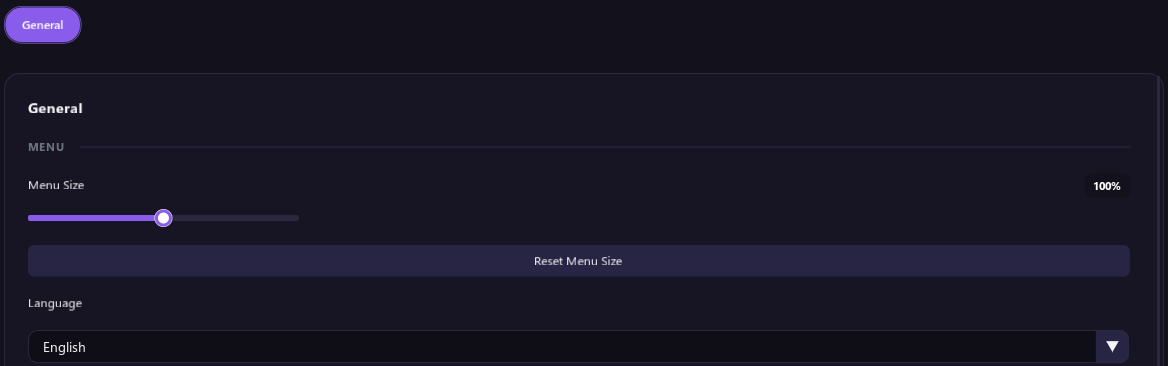
- Menu Size makes the whole menu bigger or smaller.
- Reset Menu Size picks a size that suits your screen.
- Language is the language the menu is shown in: English, Deutsch, Español, Italiano, Português (Brasil), Русский or 简体中文.
Overlay

| Option | What it does |
|---|---|
| VSync | Matches the overlay to your monitor's refresh rate. |
| FPS Limit | With VSync off, caps the overlay's frame rate. 0 means unlimited. |
| Overlay Mode | Opaque Black draws on a black background, for use with a fuser. Transparent draws over whatever is already on the monitor. See Display setup. |
| Monitor | Which screen the overlay covers. |
Connection

| Option | What it does |
|---|---|
| Connection | Shows whether your DMA card is connected. |
| Close Connection and Reconnect | Close Connection does the same as the panic key. Reconnect turns everything back on. |
| Panic Key | Instantly turns off ESP and aim until you press it again. Pick a key you won't hit by accident. It has no key until you set one. |
| Reload Game Data | Reconnects to the game. Try it if players stop showing up or the ESP looks wrong. |
Press the panic key on the tool PC's keyboard. While it is on, player ESP, the aimbot and the triggerbot all stop. Press it again to bring them back.
DMA Card

Shows how fast your DMA card was in its last speed test.
- Re-run Speed Test checks your card's speed again and switches it to its fastest setting. ESP and aim pause for a few seconds while it runs.
- Your card is slower than last time. Try another USB 3 port or cable, and check that the card is firmly in its slot.
- The last speed test could not run. The result shown is from an earlier test. Try again later.
Controller Shortcuts
Turn features on and off from the controller on the game PC, without opening the menu. Hold a button combination and the feature switches.
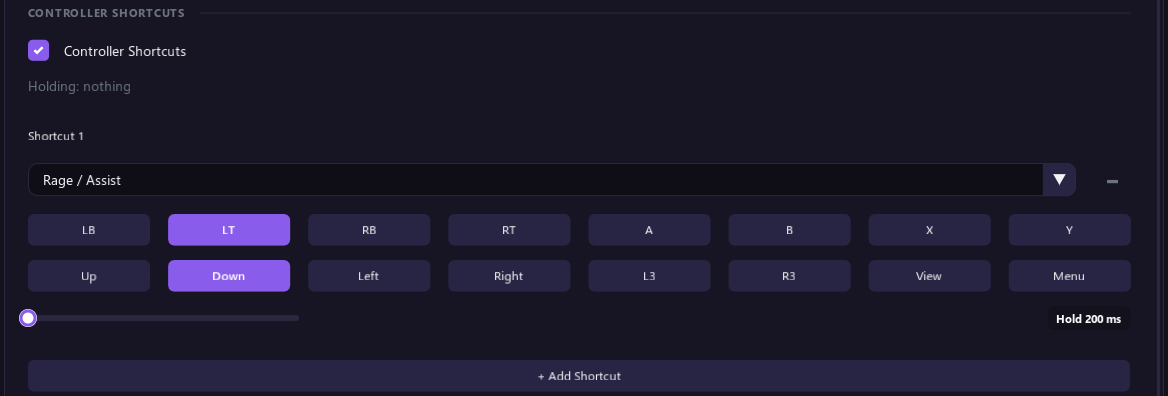
- Tick Controller Shortcuts. The line under it shows the buttons you are holding right now, so you can check that the tool sees your controller.
- Click + Add Shortcut.
- Pick the feature it switches, then click the buttons that make up the combination. Lit buttons are part of it.
- Set how long the buttons must be held, from 200 to 3000 ms.
| Feature | What the shortcut does |
|---|---|
| ESP, Skeletons, Radar, Aimbot, Triggerbot, Visible Only, Loot ESP, Aim Prediction | Turns that option on or off. |
| Map Markers | Turns Tac-Map UAV on or off. |
| Rage / Assist | Switches the Aim Mode to Rage, and back to the mode you had before. |
Each time a shortcut fires, a short notice such as ESP On or Aim Mode: Rage shows in the middle of your screen. You can have up to 8 shortcuts. The minus button next to a shortcut removes it.
Pick combinations you don't press while playing, such as a shoulder button with a d-pad direction. If one combination is part of a bigger one, holding the bigger one only fires the bigger one.
Profile
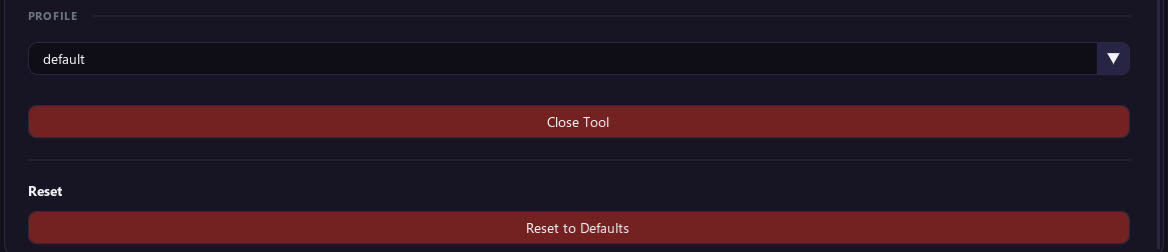
A profile is a saved set of all your settings. Click the profile box to:
- Switch to another profile by clicking its name.
- Create a profile from your current settings: type a name under New profile name and click Create. Names can use letters, numbers, spaces, - and _.
- Delete the current profile with Delete Profile. Click twice to confirm. The default profile can't be deleted.
- Turn on Per-Game Profile to keep separate settings for each game. It becomes available once a game is found. Turn it off again to delete profiles.
Profiles are saved as .cfg files in the tool's folder. Copy them to back up your settings or to move them to another PC.
Close Tool
Closes SP32DMA-AIO completely. Click it twice to confirm. Handy if the overlay is covering your screen.
Reset
Reset to Defaults at the bottom puts Menu Size, VSync, FPS Limit, Panic Key and Controller Shortcuts back to their defaults. The Panic Key goes back to having no key. Language, Overlay Mode, Monitor and your profiles stay as they are. Click it twice to confirm.