
Loot tab
Shows items lying on the ground, and lets you pick which ones appear.
The tab has two sections, Loot ESP and Item Filter. Loot is off by default and only shows during a match.
Loot ESP
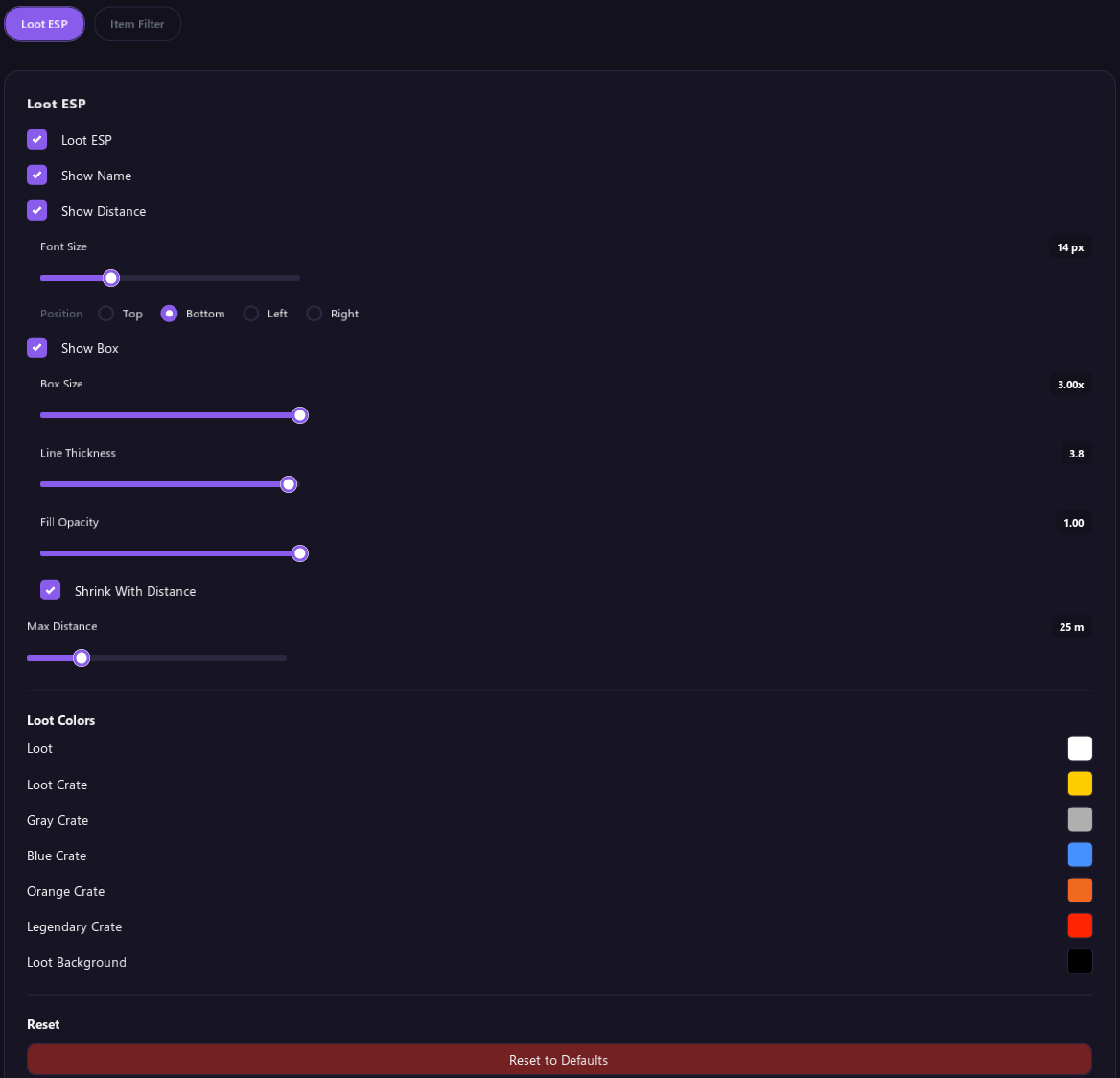
| Option | What it does |
|---|---|
| Loot ESP | Turns loot on or off. |
| Show Name | Writes the item's name. |
| Show Distance | Writes how far away the item is. |
| Font Size | How big the item text is. |
| Position | With Show Box on, which side of the marker the text sits on. |
| Show Box | Draws a square marker on each item. Crates get a crate icon. |
| Box Size | How big the markers are. |
| Line Thickness | How thick the marker outline is. |
| Fill Opacity | How solid the inside of the marker is. |
| Shrink With Distance | Draws far items smaller. |
| Max Distance | Hides items farther away than this, from 5 to 100 meters. |
You need Show Name or Show Box on to see anything. If loot is on but nothing can show, a line under the options says Turn on Show Name or Show Box to see items. or Choose the items to show in Item Filter.
Loot Colors
Set the colors for normal loot, loot crates, each crate tier (Gray, Blue, Orange and Legendary) and the backing behind loot text.
Item Filter
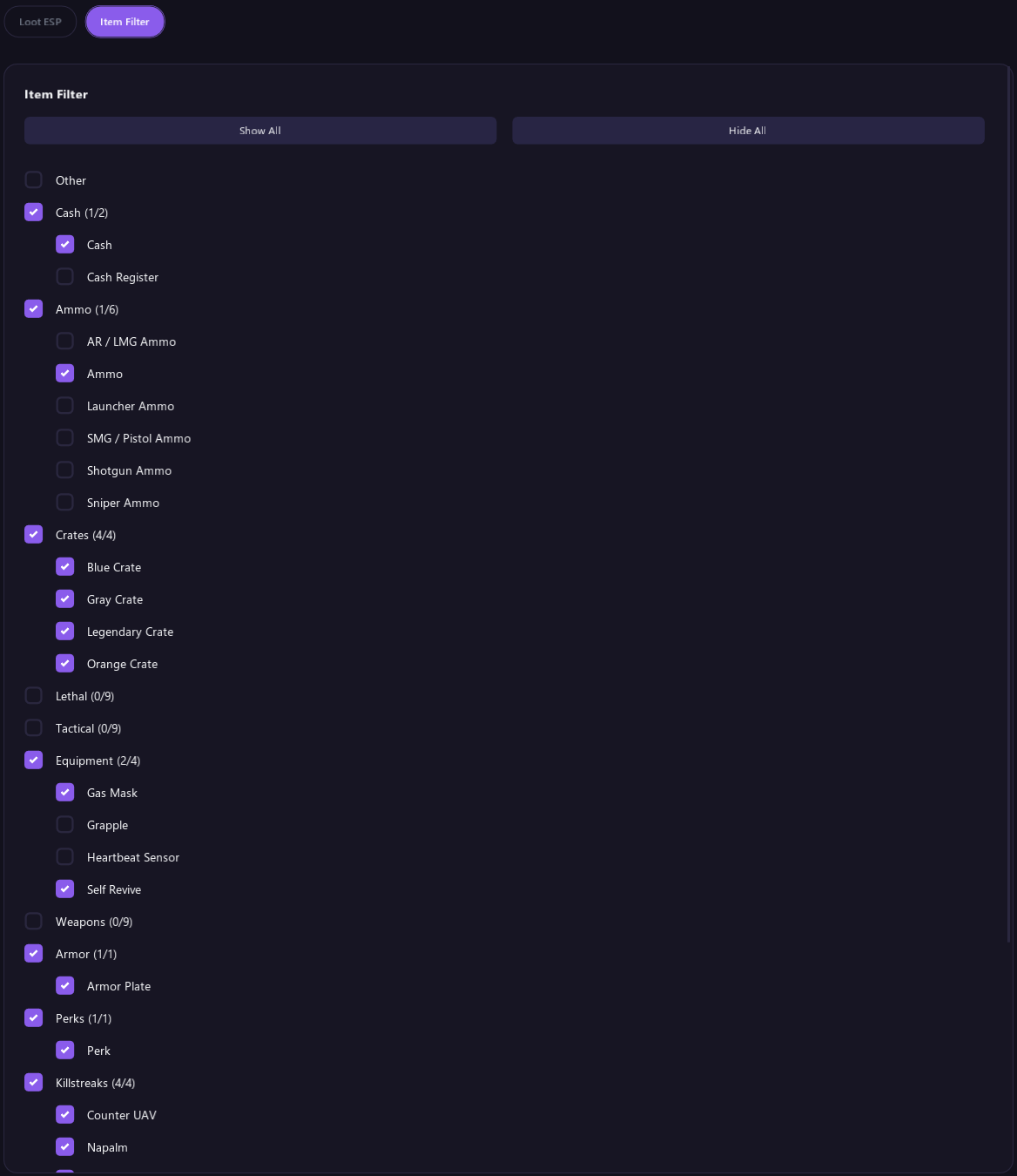
- Items are grouped into categories such as Cash, Ammo, Crates, Weapons, Armor and Killstreaks. Tick a category to show it.
- A ticked category opens up so you can turn single items on or off. The numbers next to it show how many of its items are on.
- Show All and Hide All change everything at once.
- The list fills in once the game is running, and grows as you see new items in matches.
If nothing is ticked in Item Filter, no loot shows.
Reset
Reset to Defaults at the bottom of Loot ESP and Item Filter puts the whole Loot tab back to its defaults, including the colors and the Item Filter. Click it twice to confirm.
Tips
- Showing everything gets crowded. Pick only the categories you care about.
- Lower Max Distance to keep your screen clean.
- Loot isn't available in every game.