
Aim tab
The aimbot, the triggerbot and your aim device. Both need a connected aim device.
The tab has three sections: Aimbot, Triggerbot and Aim Device. They only work during a match.
Aimbot
Some aimbot settings only show when you turn on Advanced in the corner of the Aimbot section. They are marked (Advanced) below.
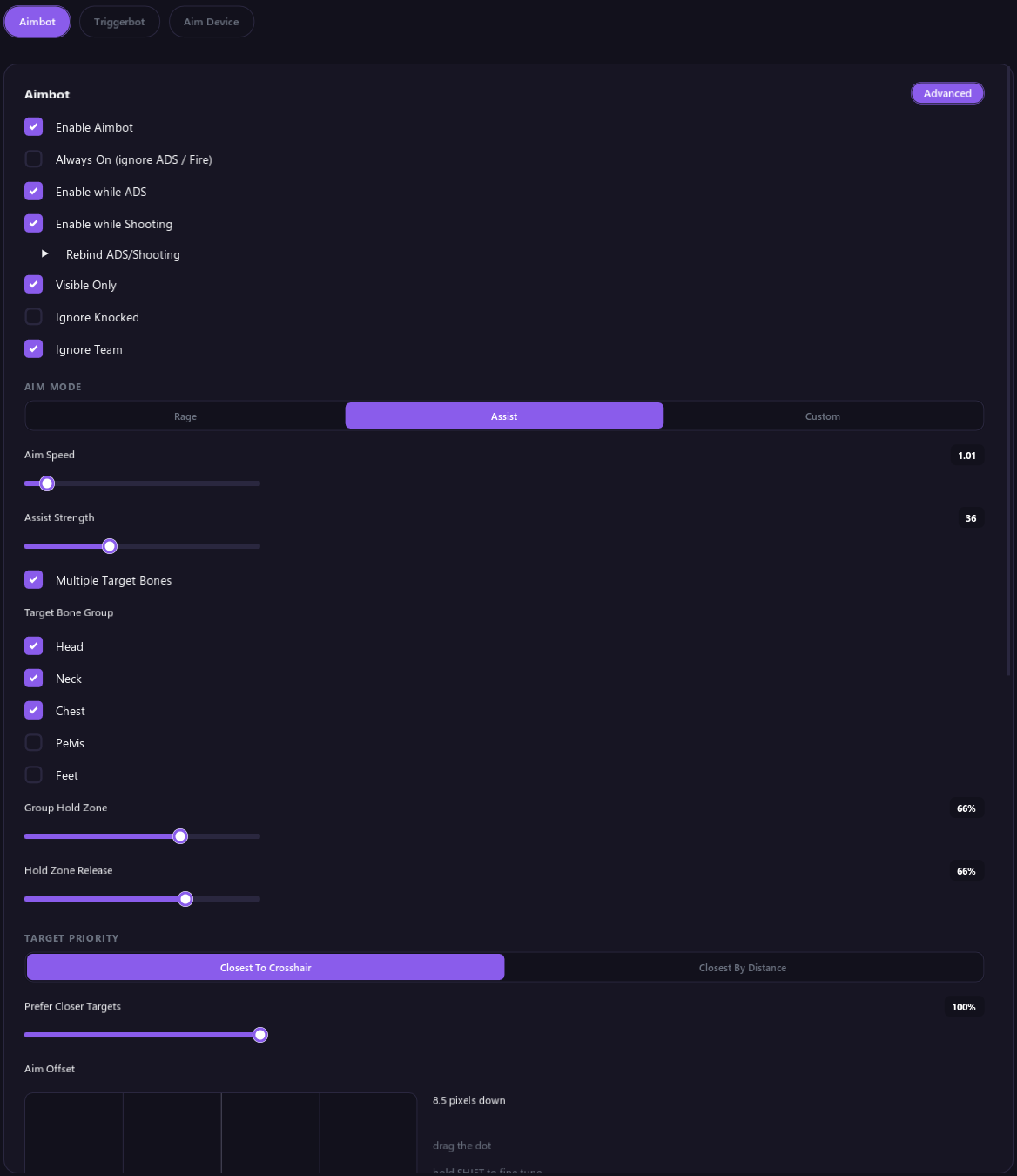
When it works
| Option | What it does |
|---|---|
| Enable Aimbot | Turns the aimbot on or off. |
| Always On (ignore ADS / Fire) | Aims whenever there is a target, without pressing anything. |
| Enable while ADS | Aims while you aim down sights. |
| Enable while Shooting | Aims while you shoot. |
| Rebind ADS/Shooting (Advanced) | Changes which button counts as ADS and as shooting. By default that is LT and RT on a controller, or the right and left mouse button. |
You press ADS and shoot on the game PC like you normally would. The tool sees it and turns the aimbot on. Whether it listens to your controller or your mouse is set by Game Input in the Aim Device section. It starts on Controller.
Who it aims at
| Option | What it does |
|---|---|
| Visible Only | Ignores players you can't see. |
| Ignore Knocked | Skips downed players. |
| Ignore Team | Never aims at teammates. When FFA Mode is on, everyone is a target. |
| Target Priority | Closest To Crosshair or Closest By Distance. |
| Prefer Closer Targets (Advanced) | Only with Closest To Crosshair. 0% picks whoever is nearest your crosshair, 100% picks whoever is closest to you. |
| Max Aim Distance | Ignores players farther away than this, in meters. |
Players you mark as Target or Cheater in the Lobby tab are aimed at first. Players you mark as Friend are never aimed at.
How it aims
| Option | What it does |
|---|---|
| Aim Mode: Rage | Snaps straight to the target. |
| Aim Mode: Assist | Gently helps you stay on target. Assist Strength sets how much. This is the default. |
| Aim Mode: Custom (Advanced) | Lets you tune the pull yourself. See Custom mode below. |
| Aim Speed | Adjust this to match your in-game sensitivity. |
| Curved Aim | Makes the aim move along a slight curve instead of a straight line. Curve Depth sets how wide the curve is. It does nothing in Rage mode. |
| Reaction Delay (Advanced) | Waits this long before it starts helping on a new target. 0 is instant. |
| Target Switch Delay (Advanced) | How long it stays on one target before it can switch, unless that player dies or leaves your FOV. 0 switches instantly. |
| Smoothing (Advanced) | Stops the aim twitching around. Higher is smoother but a little slower on fast targets. 0 turns it off. |
Custom mode
With Advanced on and Aim Mode set to Custom, you choose how hard the aim pulls at each distance from your crosshair:
- Dead Zone: no pull at all when the target is this close to your crosshair.
- Close Range and Close Strength: how hard it pulls when the target is near your crosshair.
- Far Range and Far Strength: how hard it pulls when the target is farther out.
- Max Speed: the fastest it will ever move.
The graph under these settings shows the pull strength at each distance from your crosshair.
Where it aims
| Option | What it does |
|---|---|
| Target Point | The body part to aim at: Head, Neck, Chest, Pelvis or Feet/Body. Chest is the default. |
| Multiple Target Bones | Tick several body parts. It locks on at the ticked part nearest your crosshair, then moves up to the highest one you ticked. Pick at least one. It turns off Use Position Hitbox. |
| Group Hold Zone (Advanced) | With several body parts ticked: how far the aim can drift before it pulls back. Higher stops it fighting a moving target. 0% locks hardest but looks most obvious. Rage mode ignores it. |
| Hold Zone Release (Advanced) | How far in it pulls before letting go again. Lower locks harder, higher drifts more. |
| Aim Offset (Advanced) | Drag the dot to move the aim point. Hold Shift while you drag for finer steps. Right click or double click it to recenter. |
| Use Position Hitbox (Advanced) | Aims at a point on the player's body instead of a bone, and replaces Target Point. Pick the Stance and Hitbox Point, then fine-tune with the sliders under them. Reset Position Offsets puts the sliders back. |
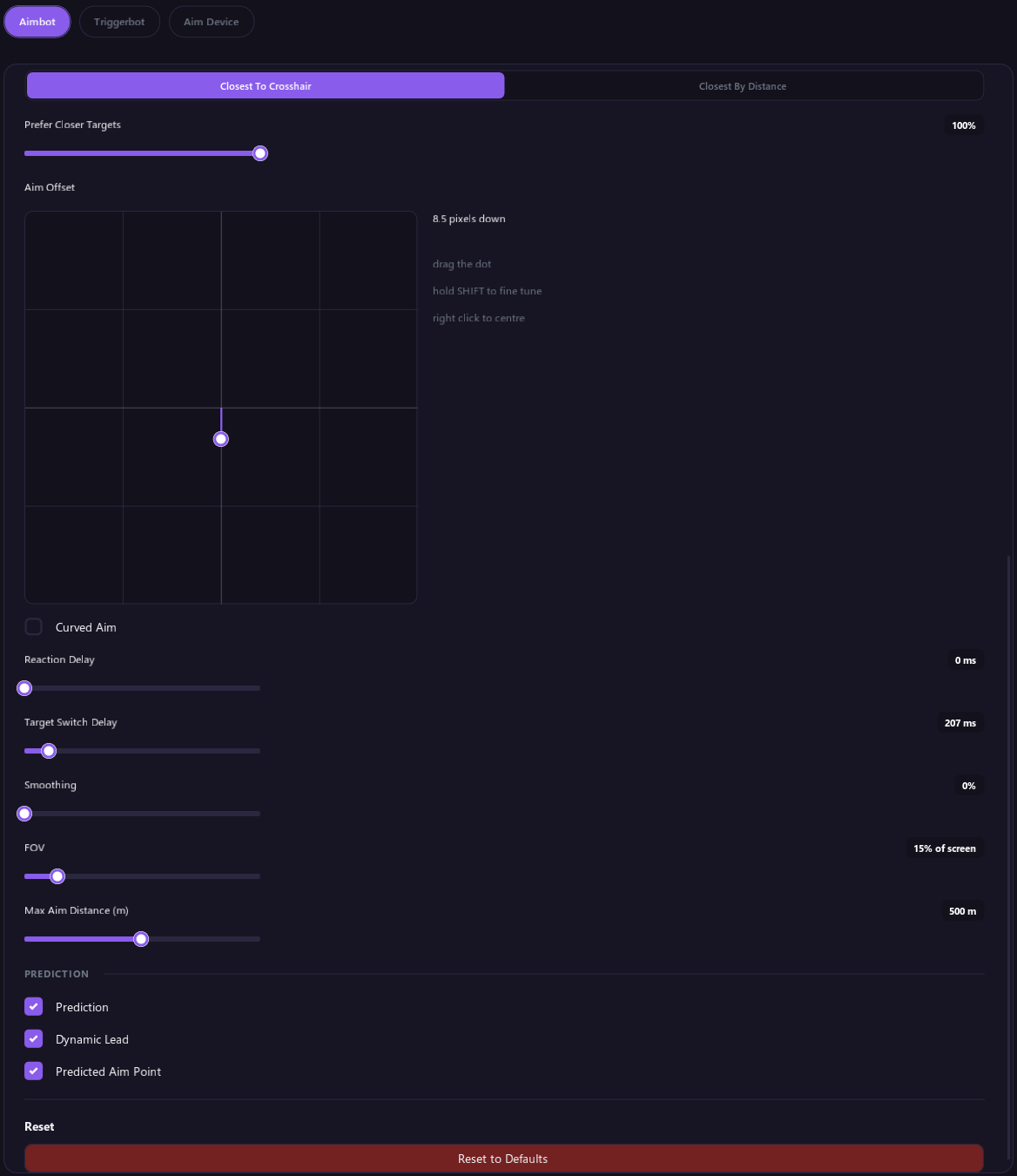
FOV
FOV is how far from your crosshair the aimbot and triggerbot look for targets, as a percentage of your screen. It is shared by both. Turn on ESP › FOV Circle › Show FOV Circle to see it.
Prediction (Advanced)
| Option | What it does |
|---|---|
| Prediction | Leads moving targets. |
| Dynamic Lead | Works out the lead from your weapon's bullet speed and drop and the target's movement. |
| Lead Time | A fixed lead in seconds, used when Dynamic Lead is off. |
| Predicted Aim Point | Shows where prediction is aiming. |
Prediction isn't available in every game. When it isn't, the options are greyed out.
Auto Ping (Advanced)
Auto Ping pings the enemy the aimbot is locked onto so your squad can see them. It stays off until you tick Enable Auto Ping under Auto Ping, and it only works while the aimbot is on and your aim device is connected.
It pings while the aimbot is active (you hold ADS or shoot, or Always On is ticked), has a target, and that target is visible. Each ping is two quick presses of the ping button, which is the game's enemy ping. The same enemy is pinged again at most every 3 seconds.
Heads up: the tool can only press buttons through your aim device, so what it presses depends on what is plugged into the aim device, not on Game Input. If you play on controller through an XIM, nothing shows up in game until you map the middle mouse button to D-pad Up in your XIM config.
| Your setup | What the tool presses | What you need to do |
|---|---|---|
| KmBox Net, KmBox BPro, or a MAKCU with a mouse plugged in, playing with a mouse | Middle mouse button, twice | Make sure ping is on the middle mouse button in the game's keybinds. |
| KmBox Net or KmBox BPro, playing on controller through an XIM | Middle mouse button, twice | Map the middle mouse button to D-pad Up in your XIM config. A KmBox only sends mouse input, so on controller it always goes through an XIM. |
| MAKCU with a mouse plugged in, playing on controller through an XIM | Middle mouse button, twice | Map the middle mouse button to D-pad Up in your XIM config. Newer MAKCU firmware doesn't change this, because the MAKCU only has a mouse to press. |
| MAKCU with a controller plugged in | D-pad Up on that controller, twice | Nothing, as long as your MAKCU is on firmware V4.097 or newer. You don't need an XIM for this. |
If you use an XIM but want the tool to press D-pad Up itself, a controller has to be plugged into your MAKCU: move your controller to the MAKCU and stop using the XIM, or plug a second controller into the MAKCU. While your MAKCU only has a mouse, the XIM mapping is the only way.
The line under Game Input in the Aim Device section shows what is plugged into your MAKCU. To check an XIM mapping, click Test Controller Input in the Aim Device section and press your mouse's middle button. D-pad Up should light up.
Triggerbot
The triggerbot shoots for you when a target is on your crosshair.
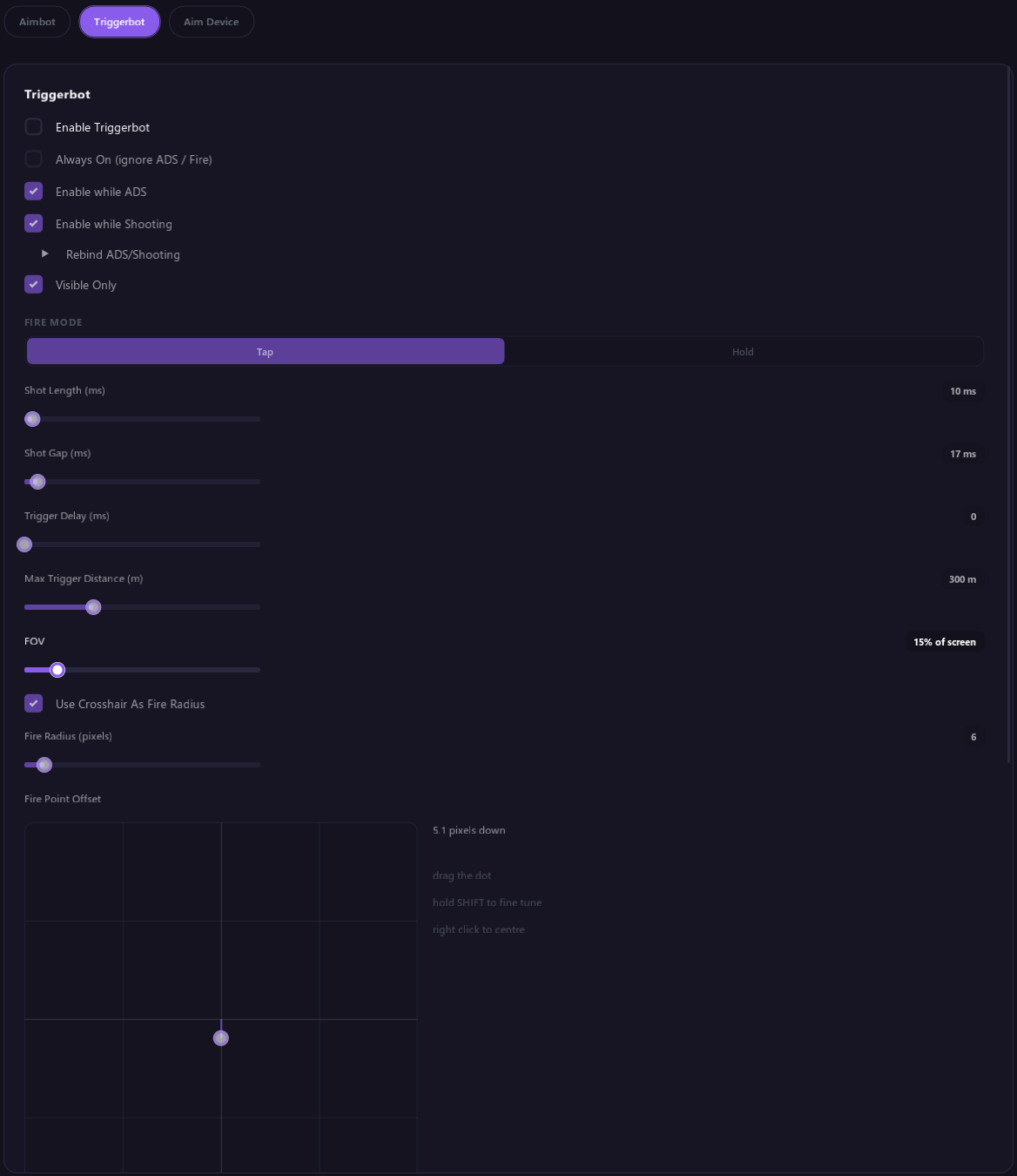
| Option | What it does |
|---|---|
| Enable Triggerbot | Turns the triggerbot on or off. It has its own Always On, ADS, Shooting and Rebind ADS/Shooting options, the same as the aimbot. By default it works while you ADS. |
| Visible Only | Only shoots at players you can see. |
| Fire Mode | Tap clicks once per shot. Hold holds fire while you are on target. |
| Shot Length and Shot Gap | For Tap mode: how long each tap holds fire, and the pause between taps. |
| Trigger Delay | Wait before the first shot, in milliseconds. |
| Max Trigger Distance | Doesn't shoot at players farther away than this. |
| FOV | The same FOV the aimbot uses. |
| Fire Radius | How close to your crosshair the target must be before it shoots, in pixels. |
| Use Crosshair As Fire Radius | Uses the crosshair you can see as the fire area instead. Needs Enable Crosshair on. |
| Fire Point Offset | Drag the dot to move where the fire radius is measured from. Hold Shift while you drag for finer steps. Right click or double click it to recenter. |
| Fire Point or Multiple Fire Bones | Which body parts count. While the aimbot is on, the triggerbot uses the aimbot's body parts instead. |
Crosshair
Enable Crosshair draws a crosshair in the middle of your screen. Pick a Style (Plus, Dot or Circle), Size, Gap, Thickness and Color. With Use Crosshair As Fire Radius on, the crosshair is the triggerbot's fire area.
Aim Device
Pick, connect and test your KmBox or MAKCU, choose whether your game gets mouse or controller input, and test a controller. See Aim device and controller for the full guide.
- Game Input is what your game receives: Mouse, or Controller (including through an XIM). It applies to both the aimbot and the triggerbot.
- Stick Strength shows when a controller is plugged into your MAKCU. It sets how far the right stick moves for each aim correction.
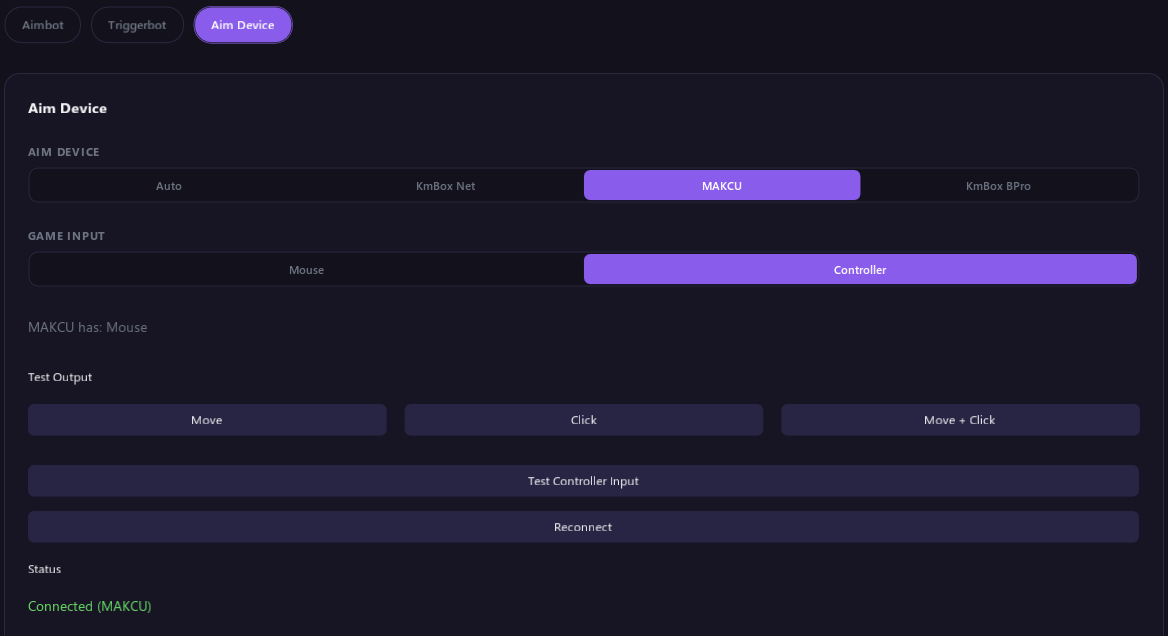
Reset
Reset to Defaults at the bottom of the Aimbot and Triggerbot parts puts the whole Aim tab back to its defaults, and Game Input goes back to Controller. Your aim device and its IP, Port and UUID stay as they are. Click it twice to confirm.
Tips
- Start with Assist mode. It is the easiest to get comfortable with.
- If the aim feels too fast or too slow, change Aim Speed to match your in-game sensitivity.
- Mark your regular teammates as Friend so the aimbot never picks them.
- If you play with a mouse, set Game Input to Mouse. Otherwise the aimbot waits for controller buttons.
- If nothing happens, check the aim device Status and see Troubleshooting.