
Aim device and controller
The aimbot and triggerbot aim and shoot through an aim device. They turn on when you press ADS or shoot on the game PC, with a controller or a mouse.
Supported aim devices
- KmBox Net
- MAKCU
- KmBox BPro
Set up and plug in your device the way its instructions say. ESP, the radar and everything else work without an aim device.
Connect it
- Open the Aim tab, then the Aim Device section.
- Pick your device, or leave it on Auto. Auto tries each supported device until one connects.
- Set Game Input to what your game receives: Mouse, or Controller (including through an XIM). It starts on Controller.
- KmBox Net only: enter its IP Address, Port and UUID (MAC). Your KmBox Net shows these on its screen.
- Click Reconnect.
- Check Status. It turns green and says Connected when the device works.
The tool also looks for your aim device every time it starts.
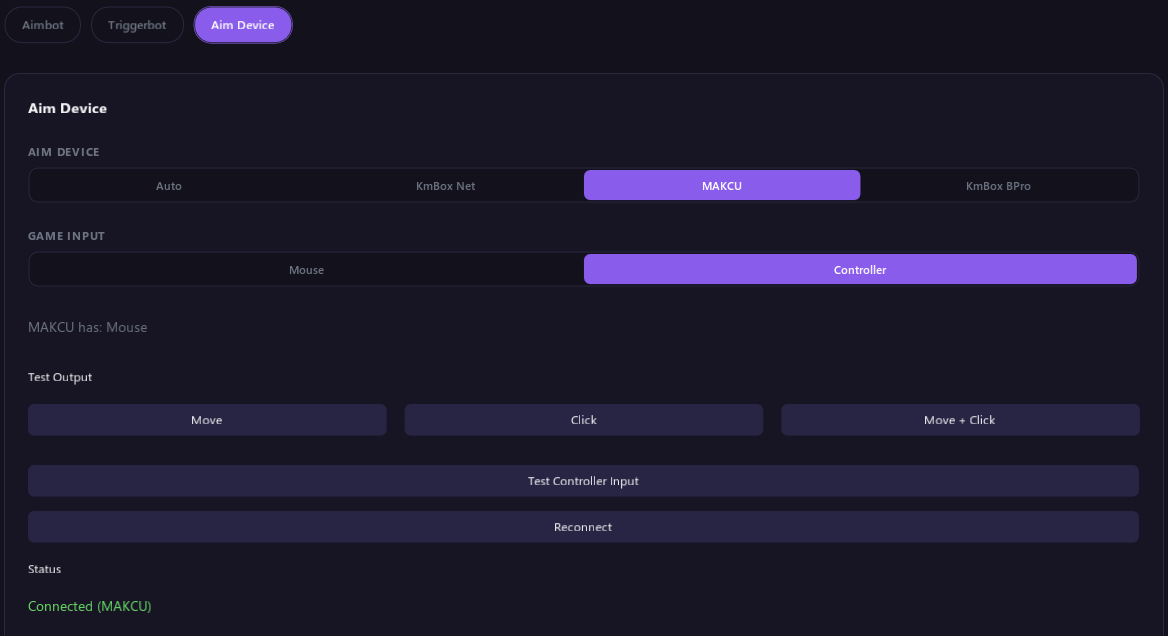
Game Input
Game Input tells the tool how you play. It applies to both the aimbot and the triggerbot.
| Choice | What it means |
|---|---|
| Mouse | You play with a mouse. ADS and shooting are your right and left mouse button. |
| Controller | You play with a controller, or a mouse through an XIM. ADS and shooting are LT and RT. |
To use other buttons, open Rebind ADS/Shooting in the Aimbot or Triggerbot section. In the Aimbot section, turn on Advanced first to see it.
MAKCU with a controller
With a MAKCU, a line under Game Input shows what is plugged into it: MAKCU has: Mouse, Controller, Mouse and controller or Nothing plugged in.
When a controller is plugged into your MAKCU, the aimbot moves the controller's right stick. Stick Strength shows under the line and sets how far the stick moves for each aim correction. If your MAKCU has both a mouse and a controller, set Game Input to Controller to aim with the stick.
| Message | What to do |
|---|---|
| Your MAKCU has a controller plugged in; set Game Input to Controller. | Set Game Input to Controller. |
| MAKCU refused controller aim; update it to V4.097+. | Update your MAKCU to version V4.097 or newer. |
Test it
The Test Output buttons check that the device really moves and clicks.
| Button | What happens |
|---|---|
| Move | Moves the mouse to the right and back again. |
| Click | Clicks the left mouse button once. |
| Move + Click | Does both. |
Status shows Output test sent when the device took the test. The buttons are greyed out until a device is connected.
Heads up: these buttons really move and click on the game PC. Make sure that's safe before you press them.
Status messages
| Status | What to do |
|---|---|
| Connected (KmBox Net), Connected (MAKCU), Connected (KmBox BPro) | All good. |
| Connecting... | Wait a moment. |
| KmBox Net: IP, Port, or UUID is not set. (or Port or UUID is empty.) | Fill in all three fields, then click Reconnect. |
| KmBox Net: invalid IP address | Type the IP exactly as your KmBox Net shows it: four numbers with dots between them. |
| KmBox Net: invalid port | Type the Port exactly as your KmBox Net shows it. It is a number. |
| KmBox Net: enter the 8-character UUID shown on the KmBox screen | Copy the UUID from your KmBox Net's screen. It is 8 characters long. |
| KmBox Net: connection failed. Check device IP, Port, and UUID. | Check the three fields and the KmBox Net's network cable. |
| MAKCU not found. (or KmBox BPro not found.) | Check the device's USB cables, then click Reconnect. |
| No aim device found. | Auto didn't find a device. Pick yours by hand and click Reconnect. |
| MAKCU stopped responding. Reconnect, or replug the device. (or KmBox Net, or KmBox BPro) | The device was working and then stopped. Unplug it, plug it back in and click Reconnect. Status goes back to Connected on its own if the device starts working again. |
| Test failed: no aim device connected. | Connect your device first. |
Using a controller
With Game Input on Controller, the aimbot and triggerbot turn on when you press buttons on a controller connected to the game PC. You still need an aim device for them to aim and shoot.
- In the Aim Device section, check that Game Input is on Controller.
- By default, LT counts as ADS and RT counts as shooting. To change them, use Rebind ADS/Shooting. In the Aimbot section, turn on Advanced first to see it.
- Click Test Controller Input in the Aim Device section and press some buttons. They light up green when the tool sees them.
Use an Xbox controller, or one that works like one, connected to the game PC. The button lists also have mouse buttons if you want to mix the two.
You can also switch features on and off from the controller. See Controller Shortcuts.
Controller test messages
| Message | What to do |
|---|---|
| Controller connected | All good. |
| Controller not found | Turn the controller on, connect it to the game PC and click Retry Now. |
| No controller is connected to the game PC. | Connect the controller to the game PC. |
| The Xbox controller driver is not loaded on the game PC. | Plug an Xbox controller, or one that works like one, into the game PC. |
| Cannot reach the game PC to read the controller. | Check that the DMA card is connected, then click Retry Now. |
| This Windows version is not supported yet. The tool needs an update. | Wait for a tool update. |
| Everything reads zero. | Press a button. If nothing changes, try with only one controller connected. |