
Menu basics
How to open the menu, find your way around it and keep your settings.
Opening and closing
- Press Insert on the tool PC's keyboard to open or close the menu. It is open when the tool starts.
- The X in the top right corner also closes it.
- While the menu is open, it takes your mouse on the tool PC. When it is closed, your clicks go straight through the overlay.
Moving and resizing
- Drag the menu by its top edge or by the logo area in the top left.
- Drag its edges or corners to resize it.
- Settings › General › Menu Size makes the text and controls bigger or smaller.
Finding your way around
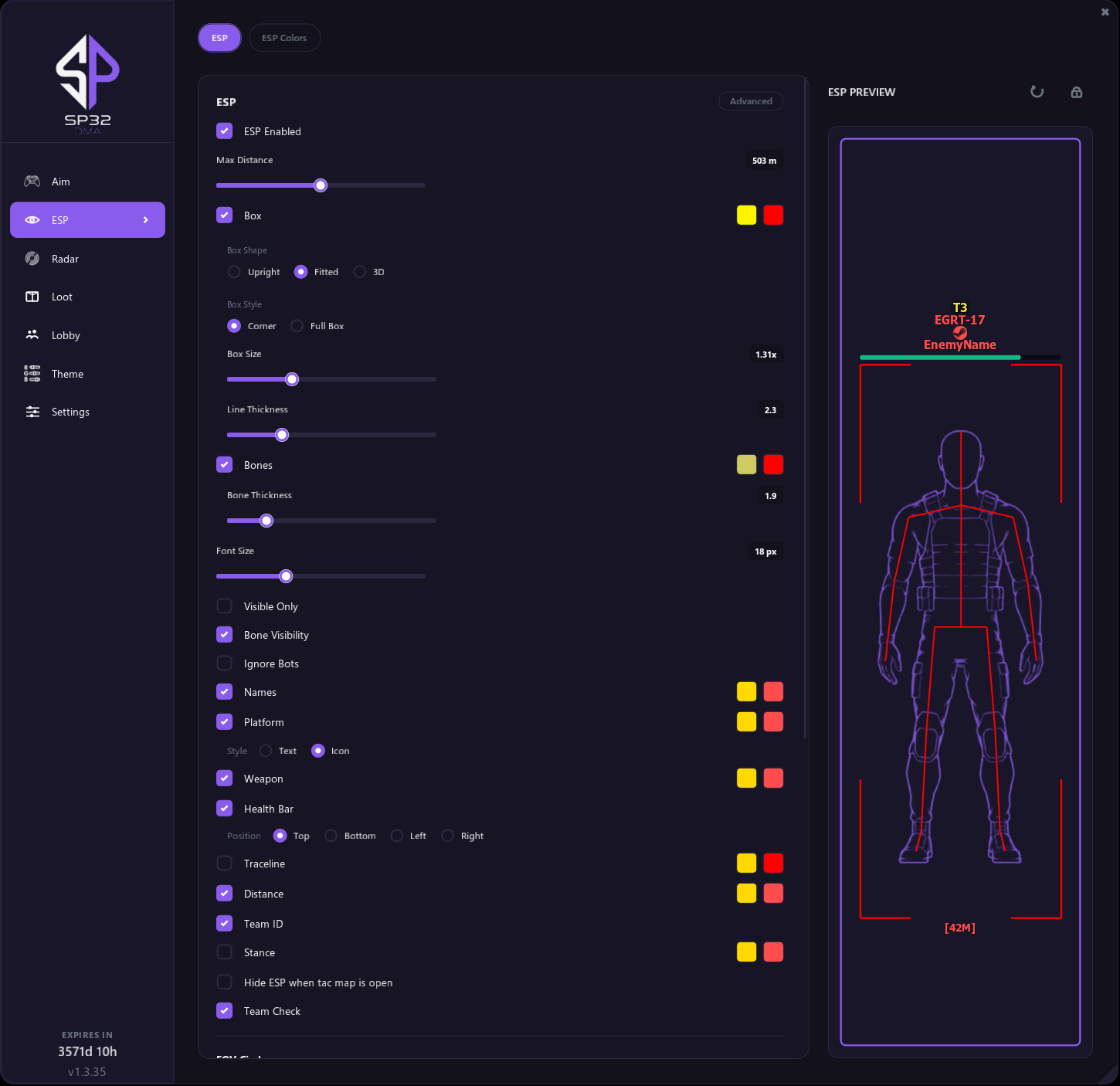
- The tabs run down the left side: Aim, ESP, Radar, Loot, Lobby, Theme and Settings.
- Most tabs have buttons along the top for their parts. For example, the Radar tab has Mini Radar, Tac-Map, Off-Screen Arrows and Web Radar.
- Hover over almost any option to see a short explanation.
- The ESP and Aimbot sections have an Advanced button in their corner. Turn it on to see extra settings.
- A greyed-out option doesn't work in your current game, or another option has turned it off. Hover over it to see why.
Putting a tab back to default
Most tabs have a Reset section at the bottom. Click Reset to Defaults twice to put that tab's settings back the way they were when you first installed the tool. Your other tabs stay as they are. Each tab's page in this help says what its reset covers.
Language
The menu can show in English, Deutsch, Español, Italiano, Português (Brasil), Русский or 简体中文. Pick one in Settings › General › Language.
Colors
- Click a color square to change that color.
- Rows with two squares have one color for when a player is hidden and one for when they are visible. Hover over a square to see which is which.
- By default, enemies you can see are red and enemies behind cover are yellow.
License and version
The bottom of the left side shows your license time left and the tool version. See License and updates.
Saving and profiles
- Your settings save on their own when you close the menu or the tool.
- Profiles keep different setups side by side. See Settings tab.
Closing the tool
Go to Settings › General › Close Tool and click it twice. This closes SP32DMA-AIO completely, which is handy if the overlay is covering your screen.